Database Pro™
Data Hub | Support Guide
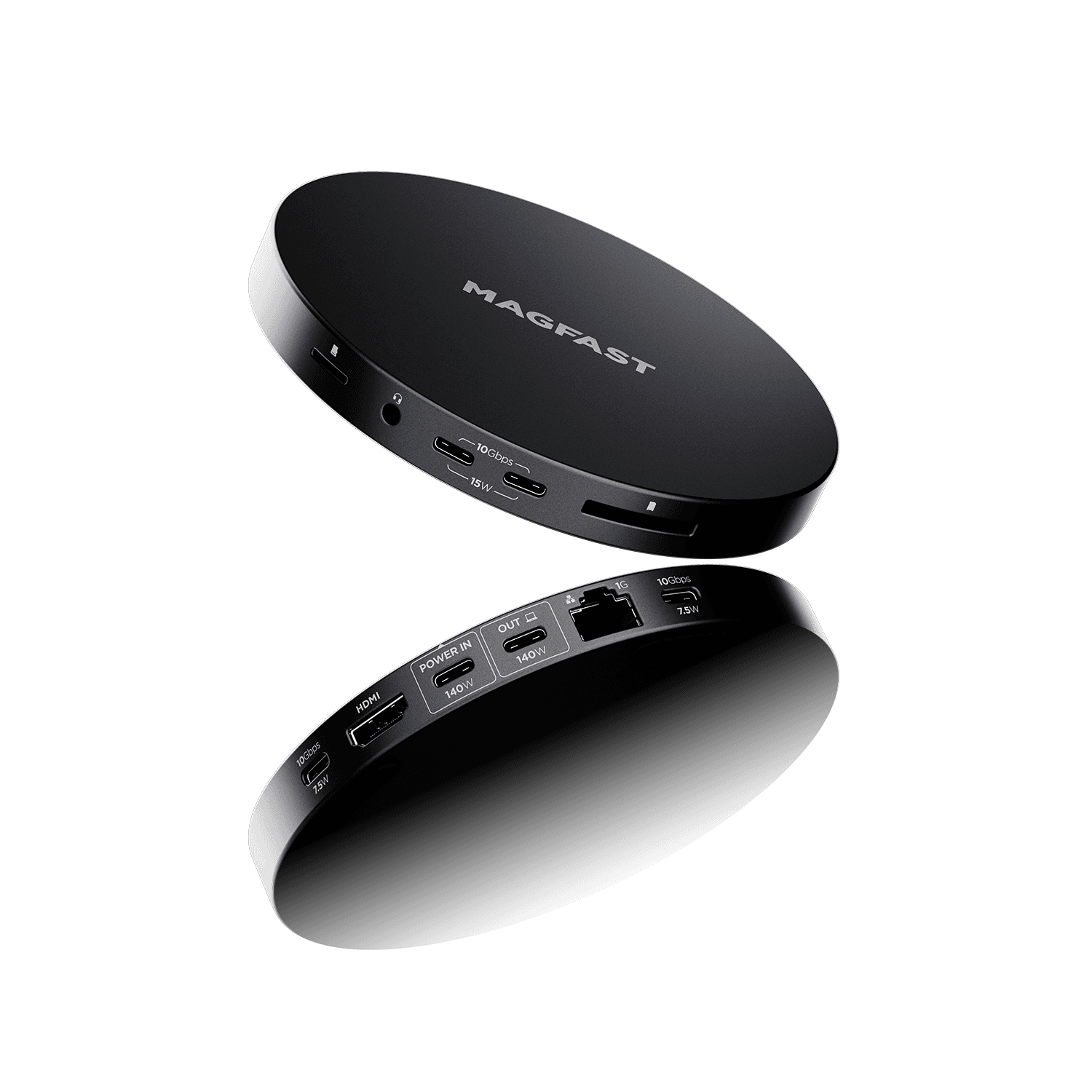
Think of your Database Pro as a Swiss Army knife for connections.
Instead of one lonely USB-C port on your laptop, you now have 11 different ways to connect - all at the same time!
What's In Your Box?
When you open your premium MAGFAST packaging, you'll find:
✅ Your Database Pro™ hub (the star of the show!)
✅ USB4 mini cable (super fast and included free!)
✅ Fingerprint™ QR code label (your product's unique ID)
The 2-Minute Setup
Step 1: Activate Your Hub ⚡
Before anything else, scan the Fingerprint™ QR code on the hub or visit https://www.magfast.com/FP/
This registers the warranty and unlocks Lost & Found service!
Step 2: Power It Up
Plug a 65W-140W USB-C power adapter into port ⑧ POWER IN (back of hub)
💡 Can skip this, but power = better performance + faster laptop charging
Step 3: Connect to Computer
Use the included USB4 cable: Hub port ⑨ OUT → Laptop USB-C port
Computer will recognize the hub automatically in 5 seconds!
Step 4: Start Plugging Things In
Just plug and play! 🎉

What Database Pro actually does
Think of it as a connection hub that gives your laptop:
Loads more ports
faster data
stable internet when using the ethernet port
an external screen
and charging — all at the same time
Unplug just the one cable to your laptop… and you’re mobile again.
Plug it back in, and everything reconnects instantly ✨
Port Cheat Sheet
Front Ports

① MicroSD - Tiny memory cards (drones, phones, action cams)
② Audio 3.5mm - Headphones, speakers, OR microphone
③ ④ USB-C 15W - External drives, SSDs, fast phone charging (10Gbps speed!)
⑤ SD/TF - Full-size camera memory cards
Back Ports
⑥ ⑪ USB-C 7.5W - Keyboards, mice, webcams, flash drives (10Gbps speed!)
⑦ HDMI - External monitor/TV up to 4K
⑧ POWER IN - 65-140W adapter goes here
⑨ OUT - Main cable to laptop (140W charging + 10Gbps data)
⑩ Ethernet - Wired internet (1Gbps = super stable!)
Power Tips
15W ports (③④) = Power-hungry stuff (external drives, tablets)
7.5W ports (⑥⑪) = Regular accessories (mouse, keyboard, webcam)
Total power budget: 140W shared across everything
Top 5 Customer Issues (& Quick Fixes!)
1. Hub Not Recognized
Unplug your computer/tablet/phone from port ⑨, wait 5 seconds, replug
Try a different USB-C port on your laptop
Restart computer with hub connected
Check the cable you’re using is at least USB3.2 spec and is fully inserted both ends
2. Laptop Not Charging
Checklist:
✅ Power adapter (power brick + charging cable) connected to port ⑧?
✅ Power adapter is 65W or higher?
✅ Laptop's USB-C port supports charging? (look for 🔋 symbol)
✅ Try different power adapter?
Common cause: Some laptops charge slowly during heavy use - this is normal.
3. External Monitor Not Working
Quick fixes:
Replug HDMI cable to port ⑦
Check monitor is on correct HDMI input
Windows: Press
Win + P→ choose "Extend" or "Duplicate"Mac: System Preferences → Displays
Update graphics drivers
Does your laptop support video over USB-C? (Most modern ones do!)
4. Ethernet Not Connecting
Turn off WiFi (they sometimes conflict)
Check cable clicked in firmly both ends
Try different port on router
Restart router (unplug 30 sec, replug)
Note: Some computers need ethernet adapter driver - search "[laptop brand] USB-C ethernet driver"
5. Device Says 'Not Enough Power'
Solution: Move device to 15W port (③ or ④)!
Your hub has two types of USB-C ports:
Ports ③④ give 15W - use these for external drives
Ports ⑥⑪ give 7.5W - use these for keyboards, mice, etc.
A few easy tips
🔌 If something needs more power (like an external drive), plug it into one of the higher-power USB-C ports
🌐 For important calls or big downloads, use Ethernet instead of Wi-Fi
Can you connect another hub to your Database Pro?
Yes! Plug a smaller USB hub into one of the USB-C ports ( ③④⑥ or ⑪) to add even MORE connections. Why you might do this: Maybe you need 5 USB-A ports for older accessories. Connect a USB-A hub to your Database Pro!
⚠️ Just remember: Each additional hub shares the same power and data bandwidth, so things might slow down with tons of devices.
🌶 If the hub feels warm during heavy use — that’s normal. Just keep it on a flat surface with airflow
Specifications: The Technical Stuff
What | Details |
Total Power In | Up to 140W via USB-C (port ⑧) |
Power to Laptop | Up to 140W via USB-C (port ⑨) |
Data to Laptop | 10Gbps via USB-C (port ⑨) |
USB-C High Power | Ports ③ ④: 10Gbps, 15W each |
USB-C Standard | Ports ⑥ ⑪: 10Gbps, 7.5W each |
Video Output | 4K HDMI (port ⑦) |
Network | Gigabit Ethernet, up to 1000 Mbps (port ⑩) |
Audio | 3.5mm stereo jack, in/out (port ②) |
Card Readers | SD/TF (port ⑤), MicroSD (port ①) |
Supported Cards | SD, SDHC, SDXC, MicroSD, MicroSDHC, MicroSDXC |
Color | Slate Gray |
Cable Included | USB4 mini cable |
Supported Charging Protocols: USB Power Delivery (PD) 3.1, PD 2.0, and more
Compatible Systems: Windows, Mac, Linux, Chrome OS, iPad OS, Android tablets
Contact us!
If something isn’t working as expected, we’ve got you 🙂
MAGFAST Support
Hello@MAGFAST.com