Products & Care
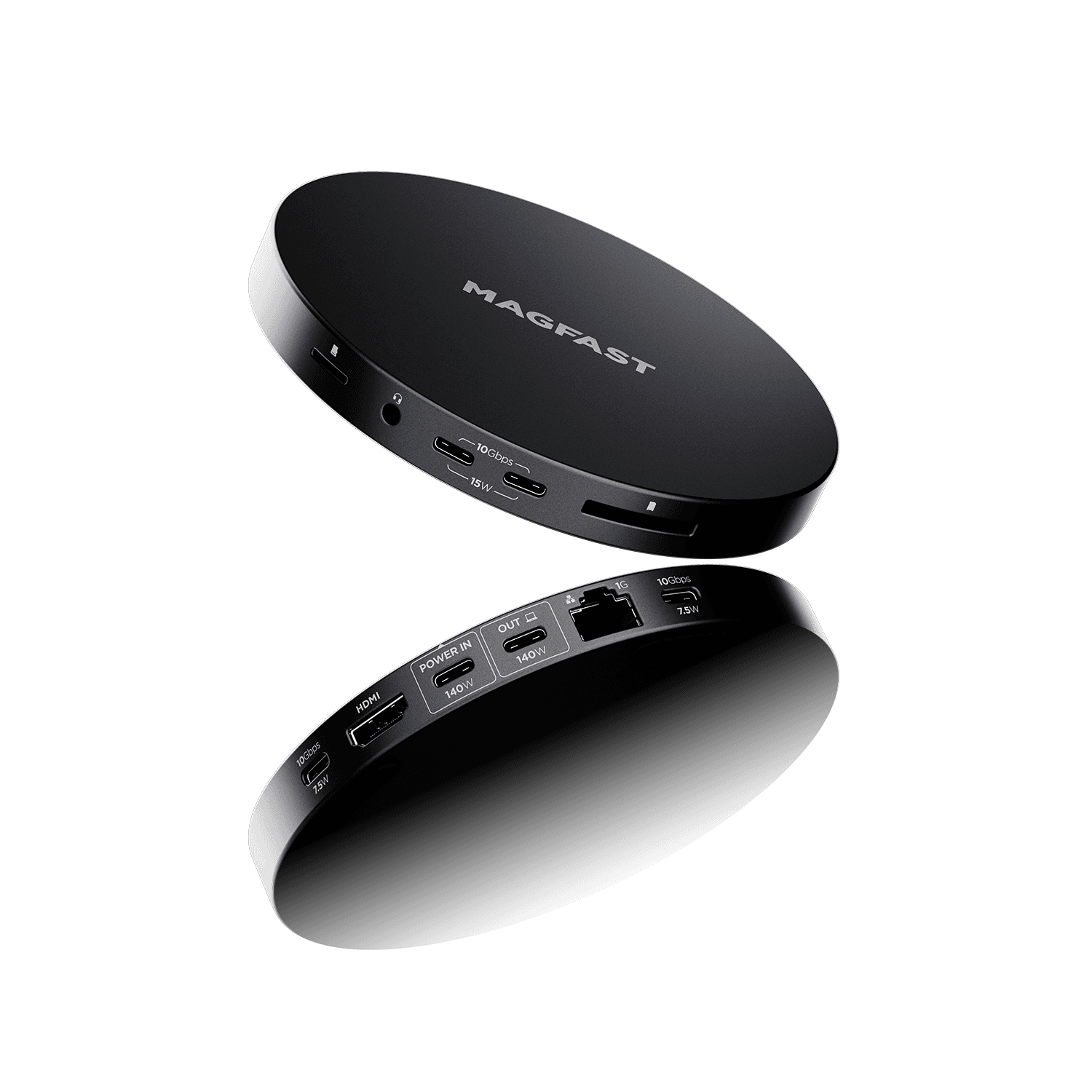
Database Pro™
Hub & Base Station — Setup & Support Guide
Think of your MAGFAST® Database Pro as a Swiss Army knife for connections.
Instead of one lonely USB-C port on your laptop, you now have 11 different ways to connect — all at the same time.
What's in the Box
When you open your premium MAGFAST packaging, you'll find:
✅ Your Database Pro hub (the star of the show)
✅ A high-speed USB-C cable (carries up to 140W power and 10Gbps data — included free)
✅ Your Fingerprint® QR code label (your product's unique ID)
The 2-Minute Setup
Step 1: Activate Your Hub ⚡ Before anything else, scan the Fingerprint® QR code on the hub (or visit MAGFAST.com/FP). This registers your hub, activates your warranty, and unlocks Lost & Found service.
Step 2: Power It Up Plug a 65W–140W USB-C power adapter into port ⑧ POWER IN (back of the hub). 💡 You can skip this, but adding power means better performance and faster laptop charging.
Step 3: Connect to Your Computer Use the included cable: hub port ⑨ OUT → your laptop's USB-C port. Your computer recognizes the hub automatically within about five seconds.
Step 4: Start Plugging Things In Just plug and play 🎉
What Database Pro Actually Does
Think of it as a connection hub that gives your laptop:
Loads more ports
Faster data
Stable internet through the Ethernet port
An external screen
And charging — all at the same time
Unplug the single cable to your laptop and you're mobile again. Plug it back in, and everything reconnects instantly ✨
Database Pro and Air Pro
Database Pro is designed to snap magnetically underneath Air Pro, so the two form one beautiful desk unit. Here's the one thing worth knowing:
That magnetic snap holds the two together — it doesn't carry power or data. To connect them electrically, run a USB-C cable from Air Pro's USB-C output into Database Pro's ⑧ POWER IN port. The magnets handle the alignment and the grip; the cable handles the power and data. (This is the most common Database Pro question, so now you know!)
Port Cheat Sheet
Front Ports

① MicroSD — tiny memory cards (drones, phones, action cams) ② Audio 3.5mm — headphones, speakers, or a microphone ③ ④ USB-C 15W — external drives, SSDs, fast phone charging (10Gbps speed) ⑤ SD/TF — full-size camera memory cards
Back Ports

⑥ ⑪ USB-C 7.5W — keyboards, mice, webcams, flash drives (10Gbps speed) ⑦ HDMI — external monitor or TV, up to 4K ⑧ POWER IN — your 65–140W adapter goes here ⑨ OUT — the main cable to your laptop (up to 140W charging + 10Gbps data) ⑩ Ethernet — wired internet (1Gbps, super stable)
Power Tips
15W ports (③④) — power-hungry gear like external drives and tablets
7.5W ports (⑥⑪) — everyday accessories like a mouse, keyboard, or webcam
Total power budget: up to 140W, shared across everything connected
Troubleshooting & Quick Fixes
1. Hub Not Recognized
Unplug your computer from port ⑨, wait five seconds, and replug.
Try a different USB-C port on your laptop.
Restart your computer with the hub connected.
Confirm your cable is at least USB 3.2 spec and fully seated at both ends.
2. Laptop Not Charging
✅ Is a power adapter (brick + cable) connected to port ⑧?
✅ Is that adapter 65W or higher?
✅ Does your laptop's USB-C port support charging? (Look for a 🔋 symbol.)
✅ Try a different power adapter.
Common cause: some laptops charge slowly during heavy use — that's normal.
3. External Monitor Not Working
Replug the HDMI cable at port ⑦.
Check the monitor is set to the correct HDMI input.
Windows: press
Win + P, then choose "Extend" or "Duplicate."Mac: System Settings → Displays.
Update your graphics drivers.
Confirm your laptop supports video over USB-C (most modern ones do).
4. Ethernet Not Connecting
Turn off Wi-Fi (the two sometimes conflict).
Make sure the cable is seated firmly at both ends.
Try a different port on your router.
Restart your router (unplug for 30 seconds, then replug).
Note: some computers need an Ethernet adapter driver — search "[your laptop brand] USB-C Ethernet driver."
5. A Device Says "Not Enough Power"
Move it to a 15W port (③ or ④). Your hub has two kinds of USB-C ports:
Ports ③④ give 15W — use these for external drives.
Ports ⑥⑪ give 7.5W — use these for keyboards, mice, and similar accessories.
A Few Easy Tips
🔌 If something needs more power (like an external drive), plug it into one of the higher-power USB-C ports (③ or ④).
🌐 For important calls or big downloads, use Ethernet instead of Wi-Fi.
Can you connect another hub to Database Pro? Yes — plug a smaller USB hub into one of the USB-C ports (③ ④ ⑥ or ⑪) to add even more connections. Handy if you need, say, five USB-A ports for older accessories. ⚠️ Just remember: each extra hub shares the same power and data, so things can slow down with lots of devices attached.
🌶 If the hub feels warm during heavy use, that's normal — just keep it on a flat surface with some airflow.
Specifications: The Technical Stuff
What | Details |
|---|---|
Total Power In | Up to 140W via USB-C (port ⑧) |
Power to Laptop | Up to 140W via USB-C (port ⑨) |
Data to Laptop | 10Gbps via USB-C (port ⑨) |
USB-C High Power | Ports ③ ④: 10Gbps, 15W each |
USB-C Everyday | Ports ⑥ ⑪: 10Gbps, 7.5W each |
Video Output | 4K HDMI (port ⑦) |
Network | Gigabit Ethernet, up to 1000 Mbps (port ⑩) |
Audio | 3.5mm stereo jack, in/out (port ②) |
Card Readers | SD/TF (port ⑤), MicroSD (port ①) |
Supported Cards | SD, SDHC, SDXC, MicroSD, MicroSDHC, MicroSDXC |
Color | Slate Gray |
Cable Included | High-speed USB-C cable |
Supported Charging Protocols: USB PD Power Delivery® 3.1, PD 2.0, and more Compatible Systems: Windows, Mac, Linux, Chrome OS, iPadOS, Android tablets
Contact us!
If something isn't working as expected, just tell us which port you're using and what you're connecting — and we'll take it from there.
We've got you 🙂
MAGFAST Support Hello@MAGFAST.com
Did this answer your question?